₹1,500 Discount on Combo Course
Grab Now Apply "FLAG26"
TallyPrime Bank Integration: Initiating Payments, Auto-Importing Statements and Reconciling in One Place
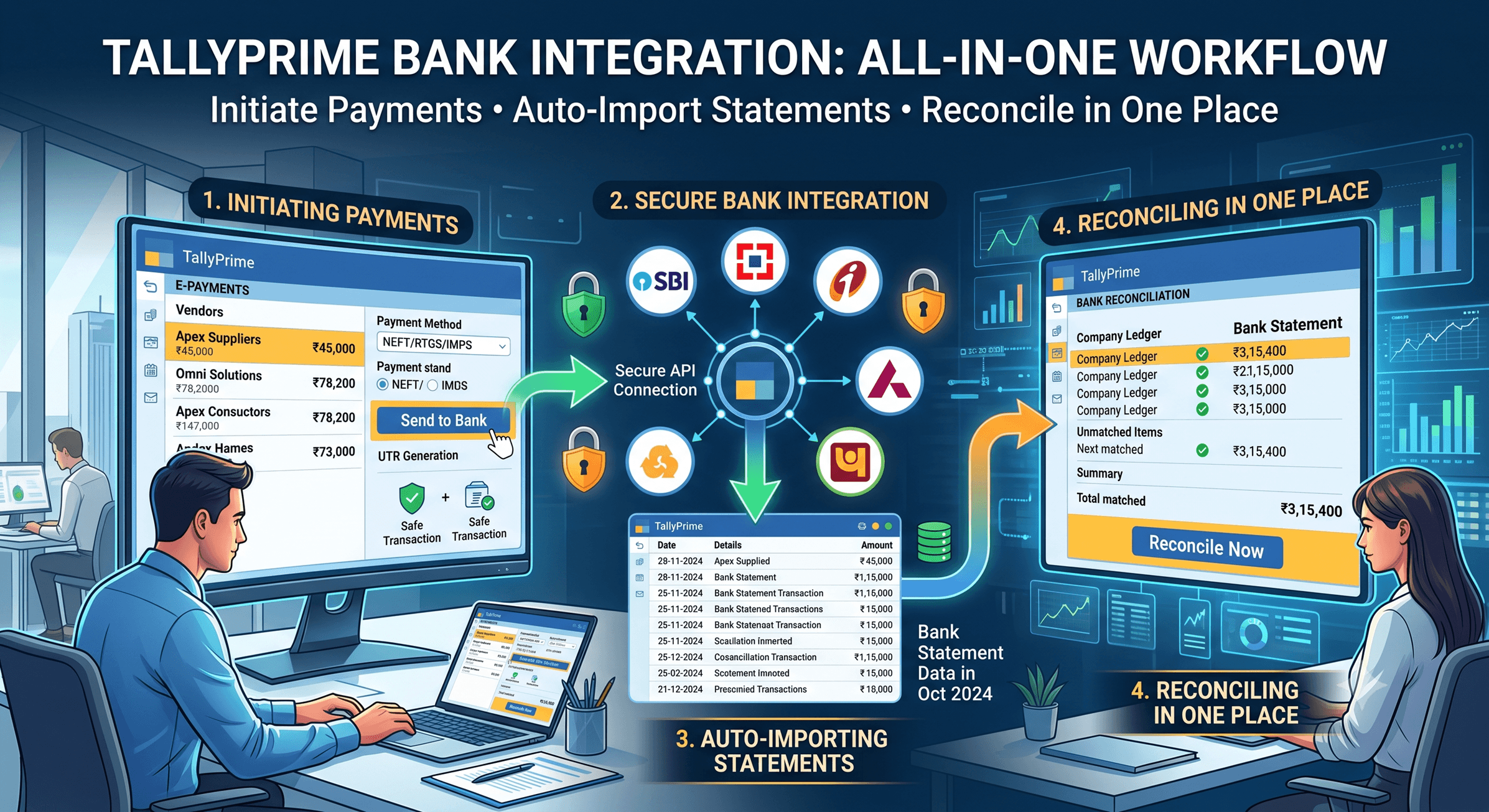
TL;DR
Tired of juggling between banking portals and accounting software? TallyPrime connects directly with major Indian banks (SBI, Axis Bank, Kotak Mahindra Bank & ICICI Bank) allowing you to initiate vendor payments and auto-import statements for instant reconciliation without leaving your accounting screen. It eliminates manual data entry, cuts down human errors, and gives you real-time visibility over your cash flow—all from one single platform.
Introduction
If you are manually downloading Excel bank statements every evening and copying payment reference numbers into your accounting software, you are losing valuable business hours and exposing your firm to avoidable errors. TallyPrime integrates directly with all major Indian banks (SBI, Axis Bank, Kotak Mahindra Bank & ICICI Bank) so you can approve vendor payments and reconcile bank statements right inside your accounting workspace. In this post, I’ll share how this single-platform workflow transforms daily accounting, drawing from real-world work with growing businesses across India.
In my experience working with growing Indian SMBs, from wholesale distributors in Mumbai to manufacturing units in Pune, I often ask founders and accountants one simple question: "How many browser tabs do you open just to pay five vendors and clear yesterday's ledger?"The response is usually a weary laugh. You open your corporate banking portal, log in, copy vendor bank account details from an invoice, double-check the IFSC code, make the payment, wait for the UTR number, and then copy that reference back into your Tally ledger. When month-end statement reconciliation arrives, the frustration doubles.
It doesn’t have to be this way. Let’s look at how modern bank integration inside TallyPrime turns this multi-step chore into a simple, single-click routine.
What is the Real Cost of Manual Banking Workflows?
Most business owners think manual payment entry is just "part of the routine." But running banking and accounting in separate silos introduces subtle, expensive risks:
- Double-entry fatigue: Typing account details once in Tally and once on the bank portal doubles the chances of a wrong digit in account numbers or transaction amounts.
- Delayed vendor relationships: Finding invoice details, verifying bank details, and manually scheduling payments takes time, often causing payment delays and missed early-payment discounts. Blind spots in cash visibility: Until you download and manually match bank statements, you don't know which customer cheques cleared or which direct debits were processed.
How Does E-Payment Work Directly Inside TallyPrime?
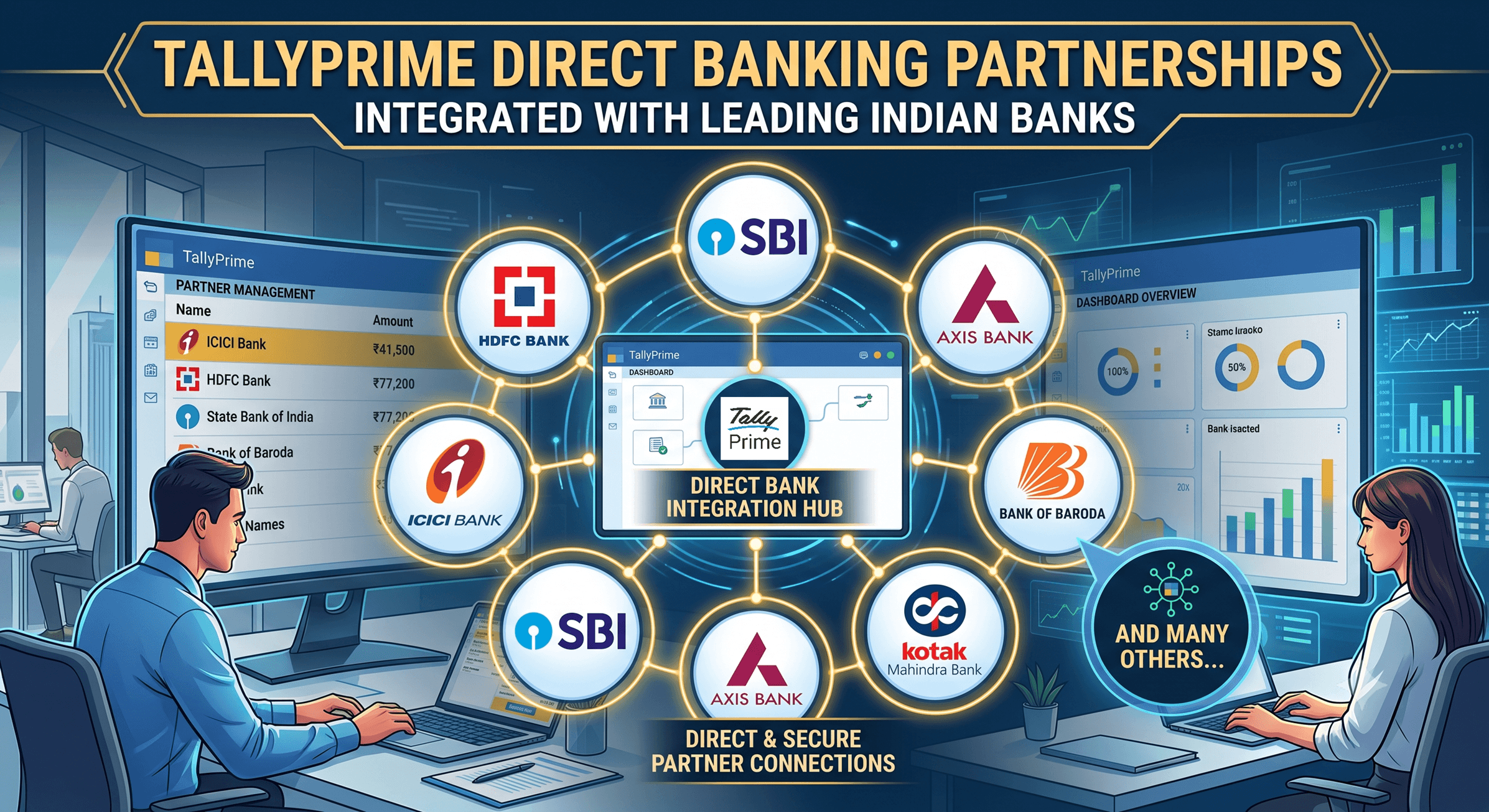
Through Connected Banking, TallyPrime partners directly with major Indian banks—including ICICI Bank, State Bank of India (SBI), Axis Bank, Kotak Mahindra Bank and many others. You don't need third-party plugins or external bridges.
Here is how straightforward the payment process works in TallyPrime:
1. Record the Purchase Invoice: Enter your vendor bill as usual. Vendor bank details (Account Number, IFSC) are stored securely in the master ledger.
2. Initiate E-Payment: Open the E-Payments dashboard under Banking in TallyPrime. Select the pending invoices you wish to clear (whether individual bills or batch vendor payments).
3. Send to Bank with One Click: Click Export / Send to Bank. TallyPrime securely transfers payment instructions to your bank’s corporate portal.
4. Authorize on Bank Portal: The business owner or authorized signatory simply logs into the bank's portal (or mobile app) to approve the payment using OTP/2FA.
5. Auto-Updated Status: Once approved, the bank sends back confirmation. TallyPrime automatically updates the payment status and records the UTR number right in your ledger!
Why is Auto-Importing Bank Statements and Reconciling a Game-Changer?
Reconciling bank statements manually line-by-line is infamous for consuming hours of tedious effort. TallyPrime simplifies this completely with Auto Bank Reconciliation.
Instead of typing in statement dates and instrument numbers one by one, you can directly import electronic bank statements (in Excel, CSV, or bank-supported formats) into TallyPrime.
Here is what happens automatically upon import:
a. Smart Matching: TallyPrime automatically matches dates, cheque numbers, and payment amounts in your bank statement with existing transactions in your books.
b. Instant Unmatched Item Highlighting: Transactions like bank charges, interest credits, or direct customer NEFT deposits that aren't in your books yet are highlighted clearly.
c. On-the-Fly Entry Creation: You can create missing vouchers (like direct bank charges) right from the reconciliation screen without exiting.
Real-World Example: How a Mumbai Distributor Saved 10 Hours a Week
Client Case Study
The Challenge: A mid-sized electrical goods distributor in Mumbai was handling over 40 vendor payments and 100 incoming customer receipts daily across two bank accounts. Two full-time accountants spent nearly two hours every morning downloading bank statements, cross-referencing ledger entries, and copying UTR numbers into Excel sheets.
The TallyPrime Solution: We helped them configure TallyPrime's direct bank integration with their ICICI and HDFC corporate accounts. They enabled electronic payment file generation and auto-import for daily statements.
The Result: Payment processing time dropped from 2 hours to under 15 minutes a day. Reconciliation errors dropped to zero, and the business owner gained real-time insight into available bank balances every morning before placing new inventory orders.
Practical Framework: Your 5-Step Bank Integration Checklist
Ready to streamline your banking inside TallyPrime? Here is a simple checklist you can apply starting today:
Step 1: Check Bank Compatibility – Ensure your bank is supported for auto-reconciliation and e-payments in TallyPrime (covers lmost all major Indian commercial banks).
Step 2: Update Vendor Masters – Verify that vendor ledger accounts have accurate Bank Account Numbers, IFSC codes, and preferred payment modes (NEFT/RTGS/IMPS).
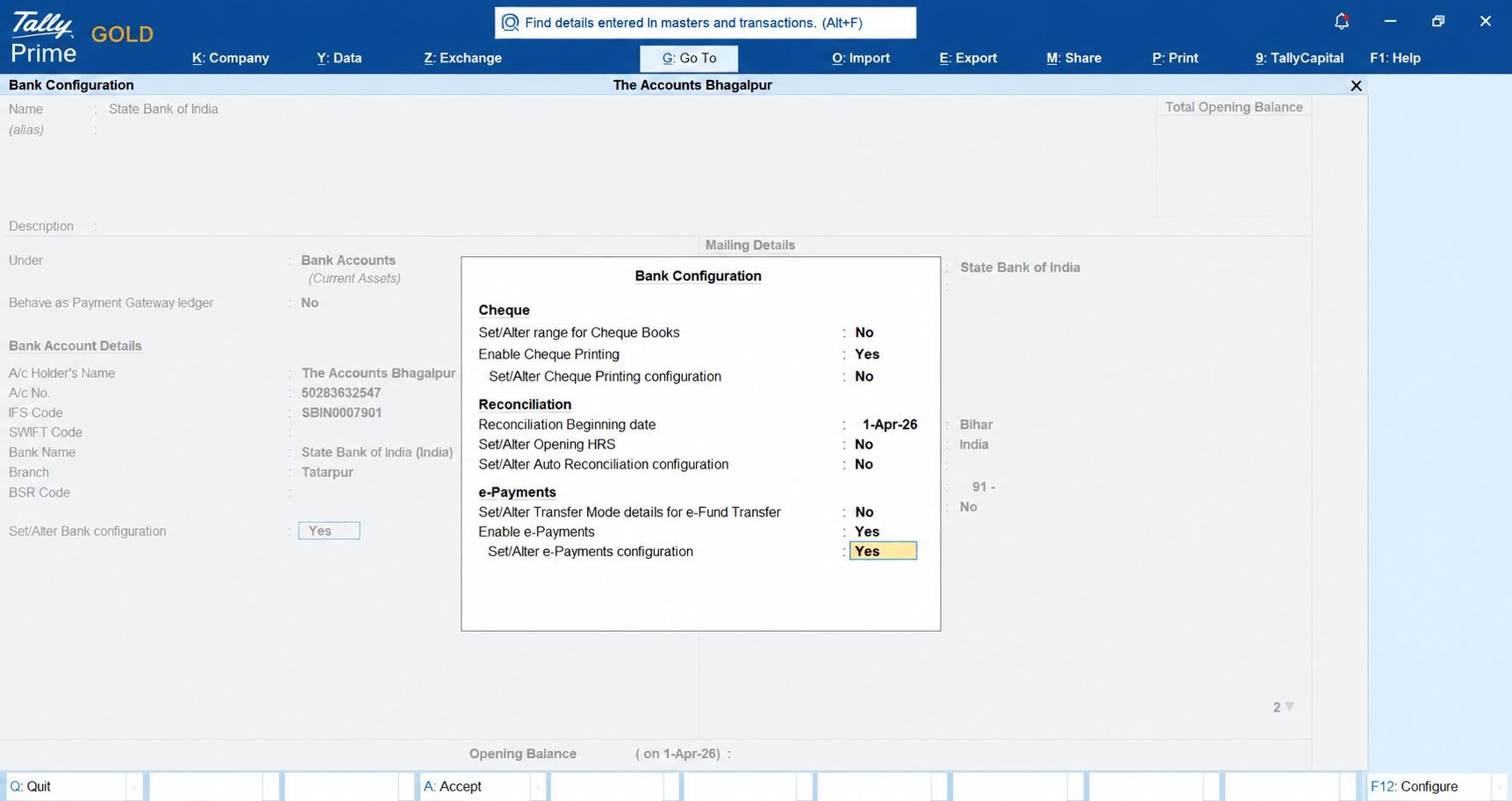
Step 3: Enable E-Payments in Bank Ledger – Go to Alter > Ledger > Bank Account in TallyPrime, set 'Enable E-Payments' to Yes, and select your bank's specific configuration.
Step 4: Set Up Bank Portal Permissions – Request your bank for corporate internet banking e-payment file uploading rights or API connectivity.
Step 5: Adopt Daily Auto-Reconciliation – Download your daily statement file from the bank and import it into TallyPrime every morning—don't wait until month-end!Also Read: How SMBs Create Customisable Financial Reports in TallyPrime
Conclusion:
When you handle payments and reconciliation in separate places, banking feels like a heavy administrative burden. By enabling bank integration in TallyPrime, you transform banking into an invisible, smooth workflow. You pay vendors faster, eliminate manual transcription errors, and always know exact cash balances—all from the single platform you already trust.
Frequently Asked Questions
Q1: Which Indian banks are integrated with TallyPrime?
Answer: TallyPrime supports major Indian banks including SBI, ICICI, Axis, Kotak, Bank, and many other regional and commercial banks.
Q2: Is initiating payments through TallyPrime safe and secure?
Answer: Yes, completely. TallyPrime uses encrypted communication standards. Crucially, final payment authorization always requires multi-factor login and OTP approval on your bank's secure portal.
Q3: Do I need internet access all the time for auto bank reconciliation?
Answer: No. You only need internet connectivity when importing statement files or sending payment requests to the bank. Regular bookkeeping inside TallyPrime remains fully functional offline.
Q4: What happens if a vendor payment fails at the bank level?
Answer: The bank portal returns a 'Failed' or 'Rejected' status. TallyPrime reads this status update and flags the transaction in the E-Payments dashboard so you can rectify details easily.
Q5: Can TallyPrime handle multiple bank accounts for one business?
Answer: Yes. You can configure multiple bank accounts in TallyPrime and easily select which bank account to pay from or reconcile individually for each transaction.
Q6: Do I need a separate plugin to auto-import bank statements?
Answer: No extra plugins are required. Auto bank reconciliation and statement file parsing are built right into TallyPrime as standard core features.